
Course updates
Course updates appear on the course home page, above the outline. They’re low-friction (no email triggered) and the right place for routine module-by-module news.
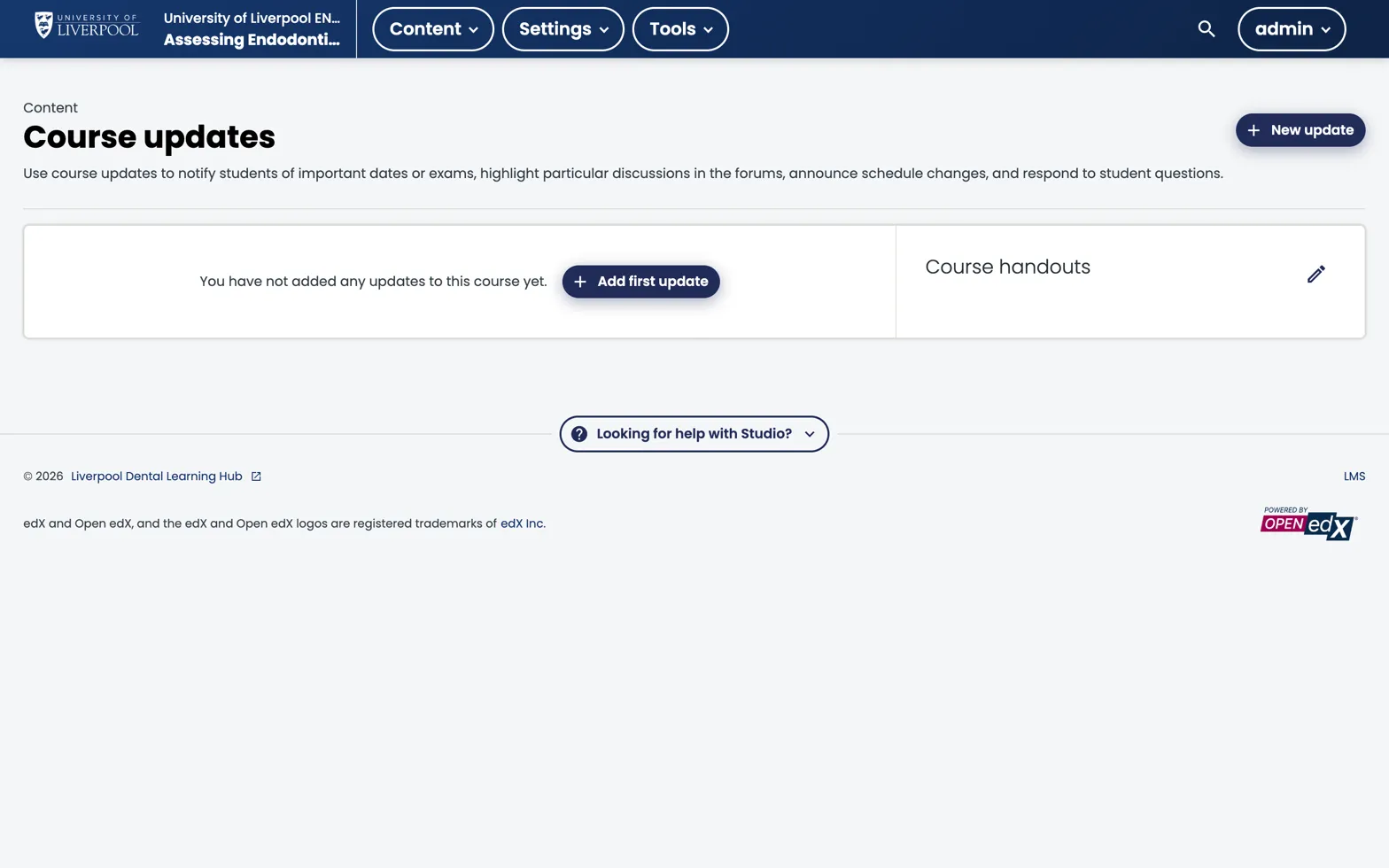
Studio → Content → Course updates. Updates added here appear at the top of the course home in the LMS. Course handouts (right) are the permanent sidebar of files and links.
How updates work
- Each update has a date and rich-text body.
- The most recent update shows expanded; older ones collapse.
- Updates are course-wide — not unit-scoped.
Good uses
- “Module 3 is now live.”
- “Updated clinical reference link on the diagnosis page.”
- “Live Q&A this Thursday at 7 pm — Zoom link in your enrolment email.”
Adding an update
- In Studio, open the course.
- Content → Updates.
- Click New Update, write the body, save.
- Updates are published immediately — no rebuild needed.
Handouts
The same page hosts a Handouts section — a permanent sidebar of links and files. Use this for:
- Reading lists.
- PDFs of slides or case packs.
- External resources that aren’t a graded part of the course.
Updates vs bulk email vs discussions
| Need | Use |
|---|---|
| One-off announcement, all learners, no email | Course update |
| One-off announcement, all learners, with email | Bulk email |
| Ongoing conversation | Discussions |
Liverpool Dental Learning Hub — author guide.
Built by BrainJam
for the University of Liverpool School of Dentistry.