
Create and manage components
A component is anything that lives inside a unit. You drop components into a unit in the order learners will see them, top-to-bottom. Get fluent with this — it’s where 80% of authoring time goes.
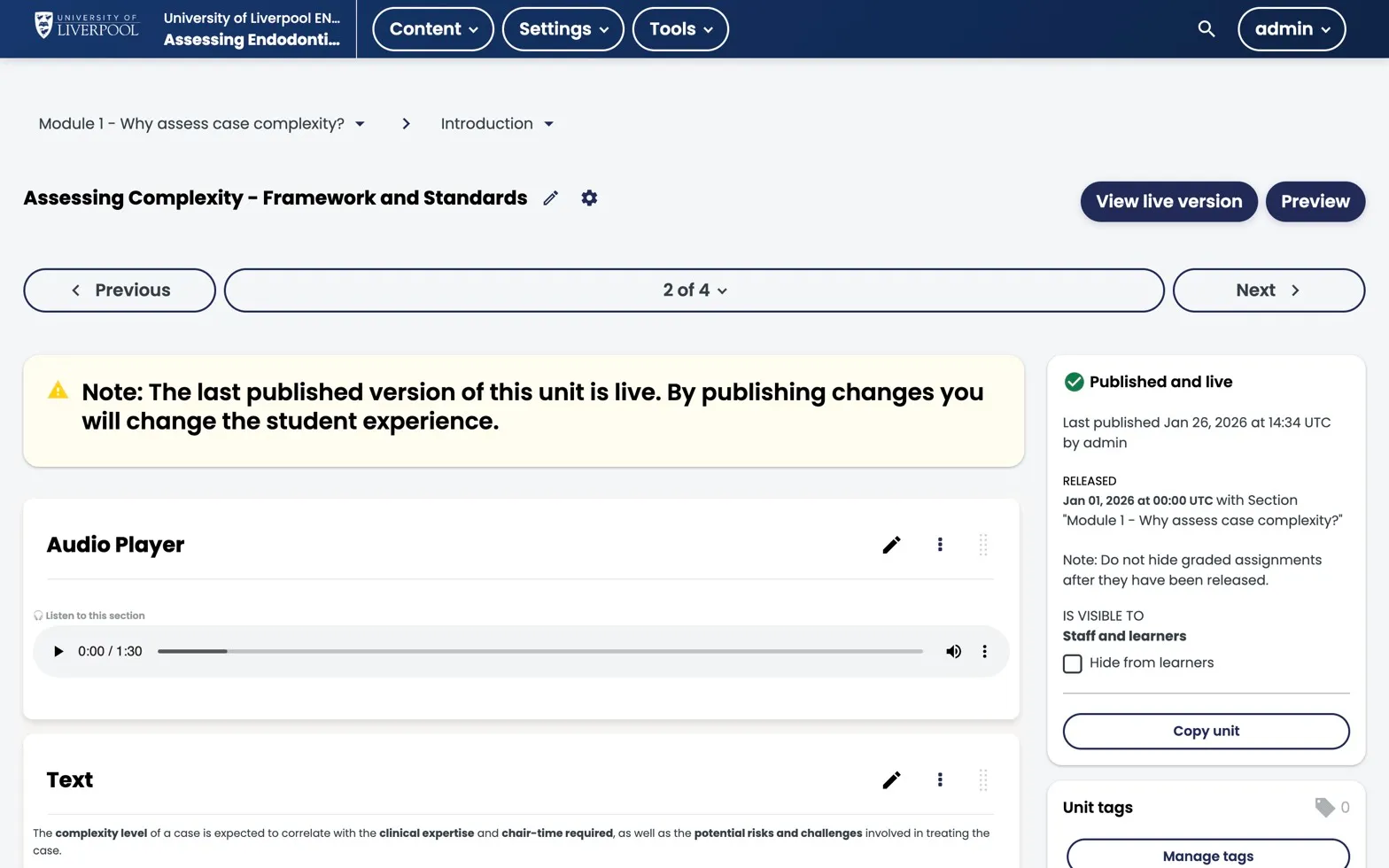
A unit open in Studio. Each card is a component — here, an audio-player-xblock followed by a Text component. The right rail shows publish state and visibility; the left rail shows where you are in the outline.
Component types
| Type | What it is | Common use |
|---|---|---|
| Text | Rich-text block (TinyMCE editor) | Intros, explanations, references |
| Video | Hosted or YouTube video | Lectures, demos |
| Problem | Question — many sub-types | MCQ, dropdown, open response, etc. |
| Discussion | Embedded forum thread | Reflection prompts |
| Advanced (XBlocks) | Custom interactives | Liverpool Dental case-based blocks |
Adding a component
- Open the unit.
- Click Add New Component.
- Pick the type. For Problem and Advanced you’ll see a second menu listing variants.
- Edit, then click Save.
Drafts vs published
Every component has a state:
- Draft (unpublished changes) — visible only in Studio preview.
- Published — visible in the LMS once the parent unit is published.
The unit publish button publishes all components inside it. You can’t publish a single component without publishing its parent unit.
Reusing content
Studio has a Library feature for cross-course reuse, but for most Liverpool Dental courses it’s overkill. If you find yourself copy-pasting the same component into three courses, ask support@learning.endo360.co.uk about wiring up a library.
Liverpool Dental custom XBlocks
The deployment ships 11 custom interactive XBlocks for case-based learning. See The problem component for the full list.