
Manage video components
Video is the heaviest asset you’ll ship. Get the workflow right once and you save hours per course.
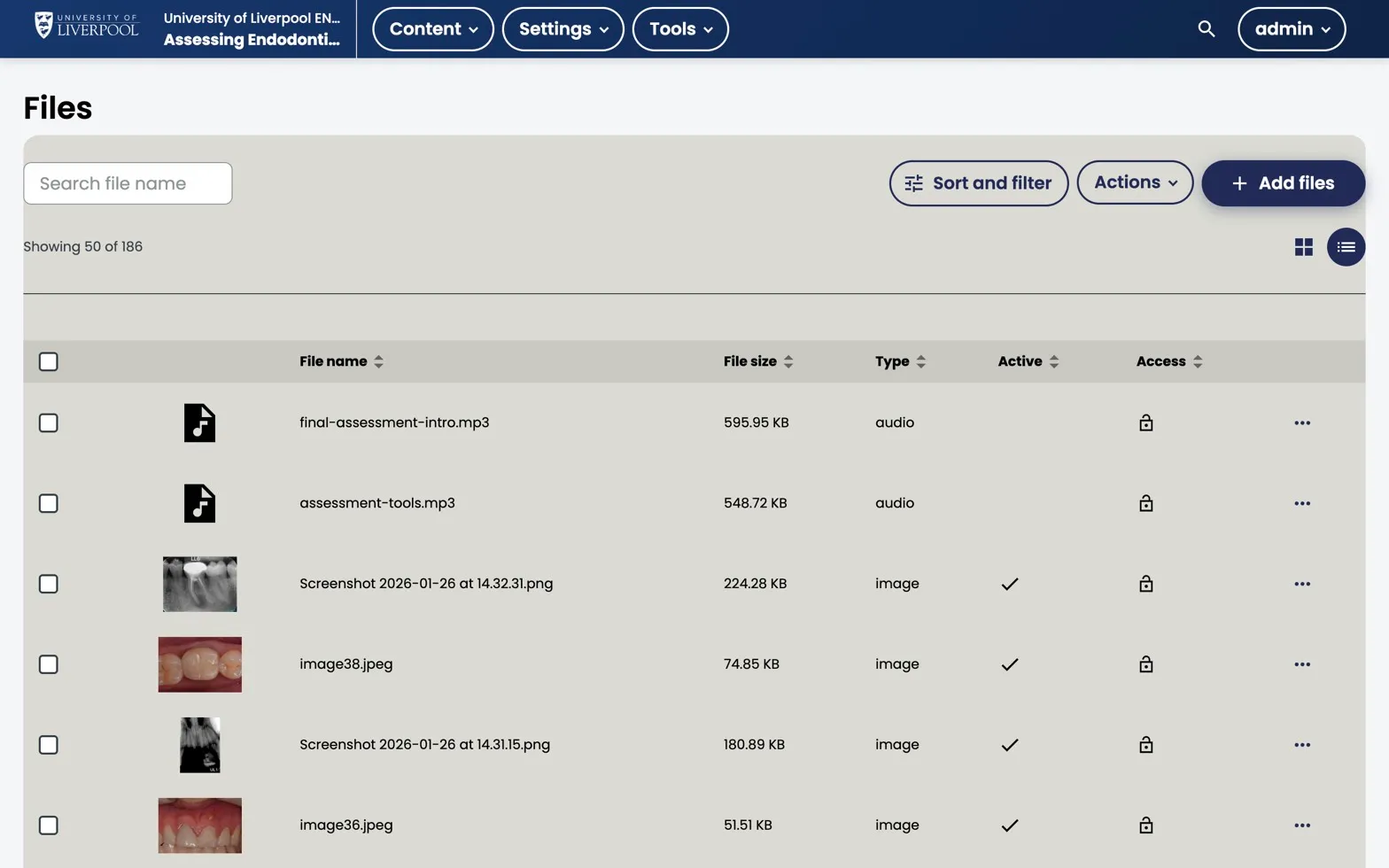
Studio → Content → Files. ENDO101 has 186 assets including audio narration (final-assessment-intro.mp3) and clinical images. All routed to Liverpool Dental’s S3 bucket via the tutor-contrib-s3 plugin.
Hosting options
| Option | When to use | Notes |
|---|---|---|
| YouTube (unlisted) | Default for most CPD content | Free CDN, captions easy, but logs out of your domain |
| Uploaded video | Sensitive content, no external embed allowed | Stored on S3 (Liverpool Dental’s media bucket) — see hosting note |
| Vimeo / Wistia | Bespoke productions | Use the HTML5 video URL field |
Adding a video
- Add Component → Video.
- Paste the YouTube URL or upload an
.mp4. - Set the display name.
- Save.
Transcripts (always add one)
- For YouTube videos: download captions or paste a manually corrected transcript.
- For uploaded videos: upload a
.srtor.vttfile in the Video editor.
This is a GDC/WCAG accessibility requirement. See Manage video transcripts.
Hosting on S3
Uploaded videos go to the Liverpool Dental S3 bucket via the tutor-liverpool-dental plugin’s storage routing. You don’t need to do anything — uploads through Studio Just Work — but if you’re considering uploading 50 GB of source video, mention it to support@learning.endo360.co.uk first.
Video best practice for CPD
- Keep individual clips under 8 minutes — split longer recordings.
- Speaker on camera in a corner, slides centred, is the most-watched format.
- Show one key reference at the end so learners can cite the source.
Liverpool Dental Learning Hub — author guide.
Built by BrainJam
for the University of Liverpool School of Dentistry.