
View course enrolments
The instructor dashboard in the LMS is your source of truth for who’s in your course. Two main views: a live summary and a CSV download.
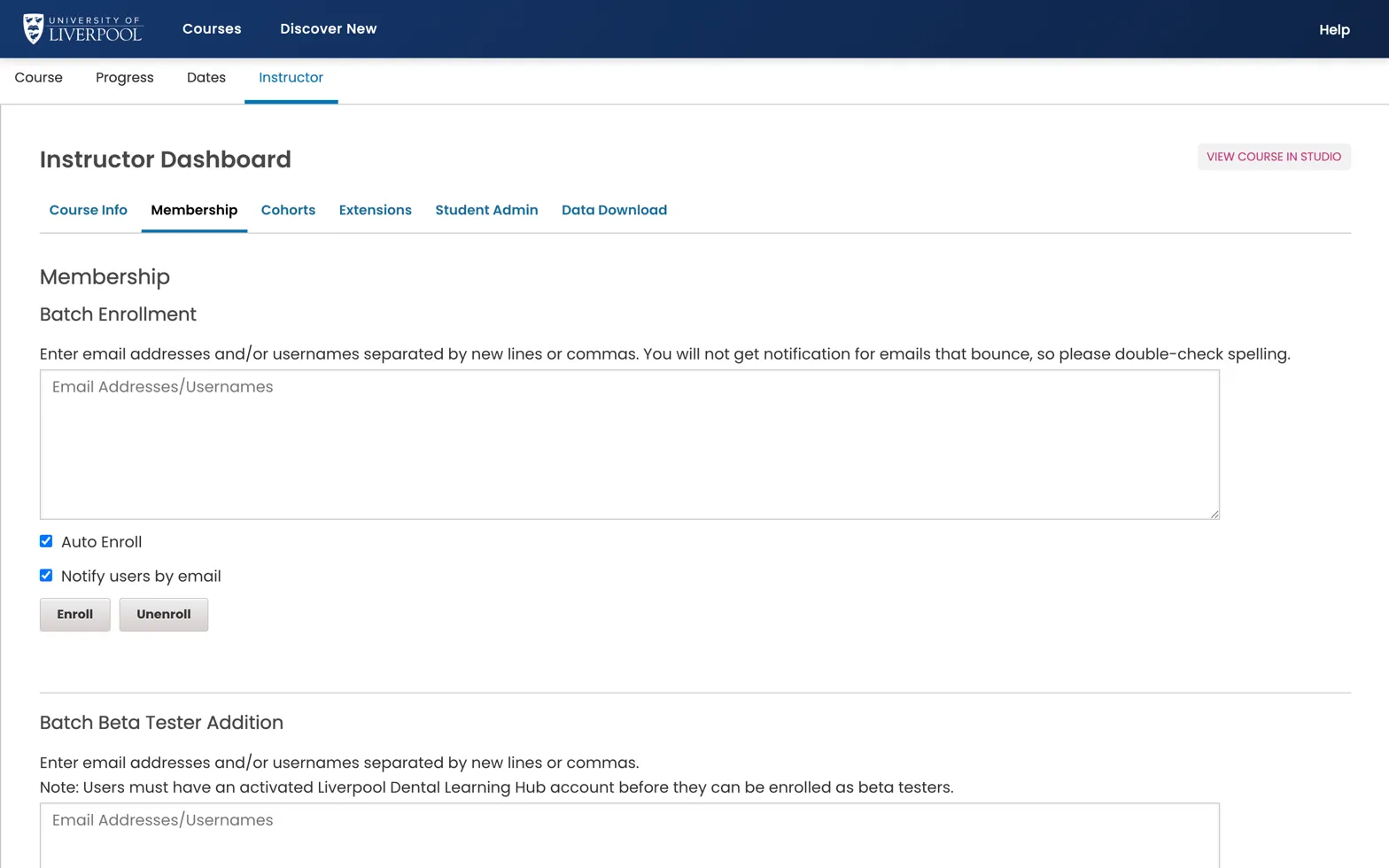
The Membership tab of the Instructor Dashboard for ENDO101. Paste a list of email addresses into Batch Enrollment, tick Auto Enroll and Notify users by email, then click Enroll.
Live summary
In the LMS, open the course → Instructor → Membership. You see:
- Current enrolment count.
- A paginated list of enrolled learners (email, username, enrolment date).
- A “batch enrol” form (see enrolment guide).
CSV download
For analysis — Instructor → Data Download → “Enrolled Learner Profile Information”. The CSV includes:
- Username, name, email.
- Enrolment date and mode (audit / honor / verified — all are audit in this deployment).
- Profile fields (year of qualification, GDC number if collected on registration).
Downloads are queued — refresh the page after a minute to find the file under Reports Available for Download.
What you can’t see here
- Activity — how far through the course they are. See View learner data.
- Grades — see View learner grades.
- Certificates issued — see View certificate data.
Liverpool Dental Learning Hub — author guide.
Built by BrainJam
for the University of Liverpool School of Dentistry.