
Enrol learners in a course
Once a course is published, learners get into it one of three ways. Pick the right one before you announce the course.
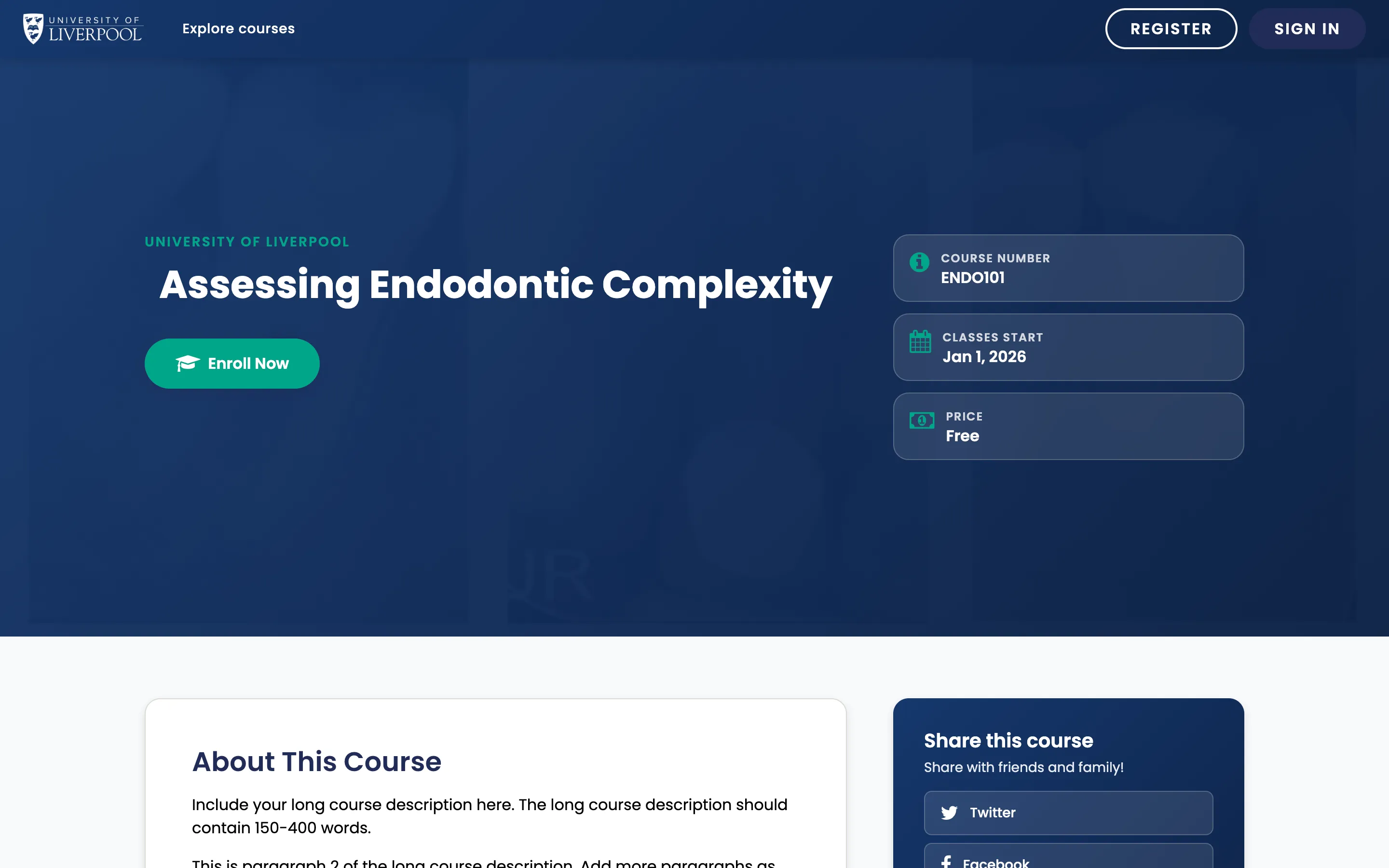
The course-about page learners hit when they click a course tile in the catalogue. The Enrol Now button kicks off self-enrolment.
Three enrolment paths
1. Self-enrolment (default)
Anyone with an account on learning.endo360.uk can browse the course catalogue and click Enrol. This is the default and what most Liverpool Dental CPD courses use.
Toggle under Settings → Schedule & Details → Course Visibility in the catalogue.
2. Invitation-only
Set the course to Invitation Only if you want to gate enrolment (private cohorts, beta groups). Learners then need to be enrolled by an admin via the LMS Instructor dashboard.
3. Bulk enrolment from a CSV
Use this for cohort programmes or whole-practice sign-ups.
- In the LMS, open the course as an instructor.
- Instructor → Membership → Batch Enrolment.
- Paste email addresses (one per line) and click Enrol.
- The Learning Hub sends each new email address an invitation to create an account; existing users are enrolled immediately.
Capacity, payments, and codes
The Liverpool Dental deployment does not currently have e-commerce wired up, so course-level pricing is a label only — there are no checkout flows. If you need paid enrolment, raise it with support@learning.endo360.co.uk before you publish.
Checking who is enrolled
- LMS → Instructor → Data Download → Enrolled Learner Profile Information (CSV).
- Or use the in-LMS Membership page for a paginated view.