
Control content visibility and access
Every section, subsection, unit, and component has independent visibility settings. Misconfigure these and learners either see unfinished content or can’t see content you’ve finished — get this mental model right early.
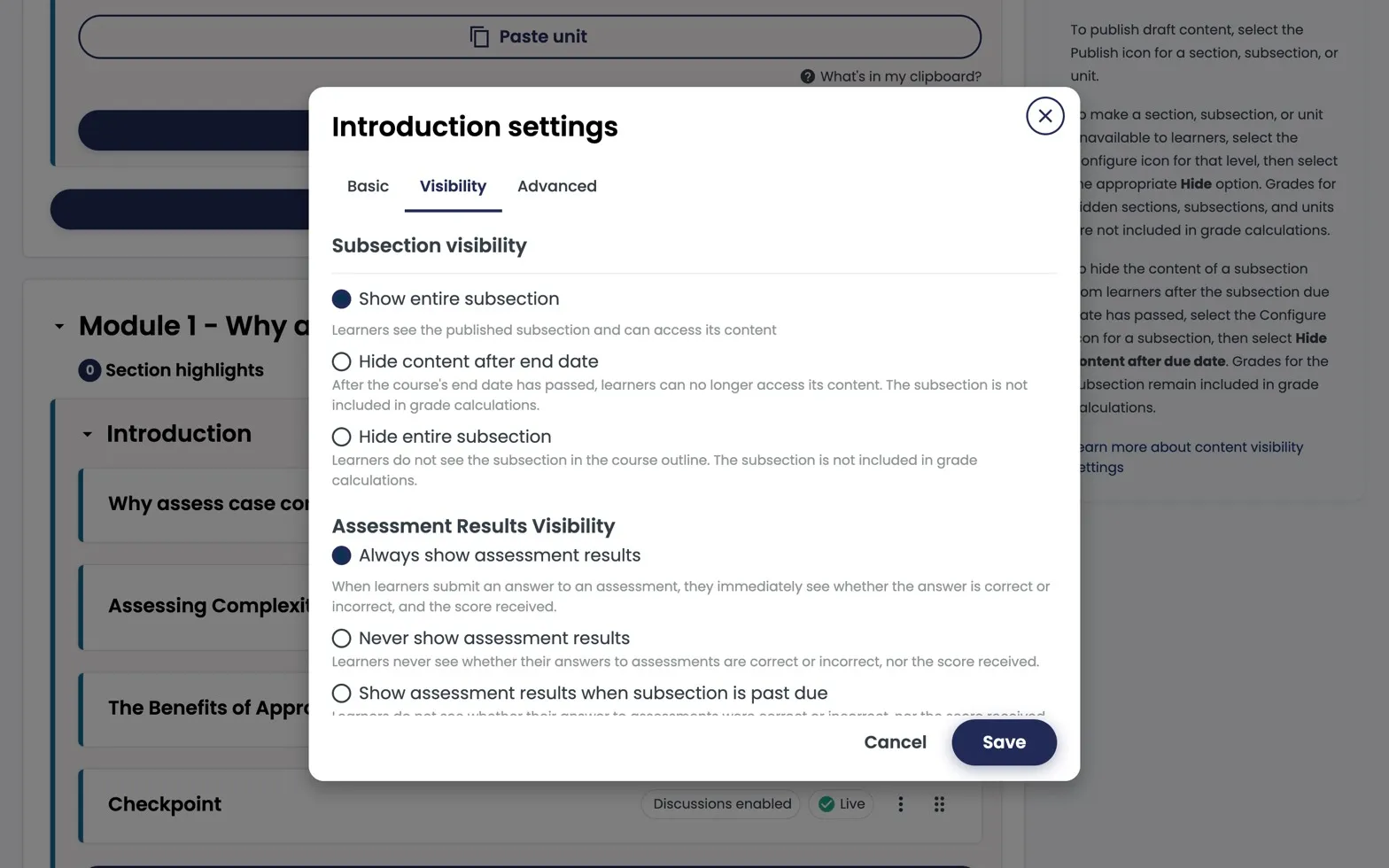
Subsection settings → Visibility. Two control groups: Subsection visibility (show all / hide after due date) and Assessment results visibility (always / never / past-due).
The three layers of visibility
1. Publish state
- Draft — only visible in Studio preview.
- Published, not yet released — locked behind a release date.
- Published and released — live to learners.
2. Release date (subsection-level)
Set under the subsection’s settings. Content with a future release date appears greyed out in the LMS until the date passes.
For self-paced courses you usually leave release dates blank — everything available from enrolment.
3. Staff-only flag (unit-level)
Mark a unit as Staff Only to keep it visible to course staff but hidden from learners. Useful for:
- Internal author notes.
- Content under clinical review.
- Holding pen for next module.
Due dates
Set due dates per subsection for graded assessments. In self-paced courses, due dates are relative to the learner’s enrolment date if Self-paced is enabled — otherwise they’re absolute.
Cohort and group-scoped content
Use Content Groups to show different content to different cohorts. See Offer different content to different groups.
A common mistake
Hitting Publish on a unit doesn’t change anything for learners if the parent subsection is still in draft. Always publish from the highest level you’re ready to release — Studio will cascade.