
View learner grades
The gradebook is the canonical place to see and adjust grades. It’s a per-course view in the LMS.
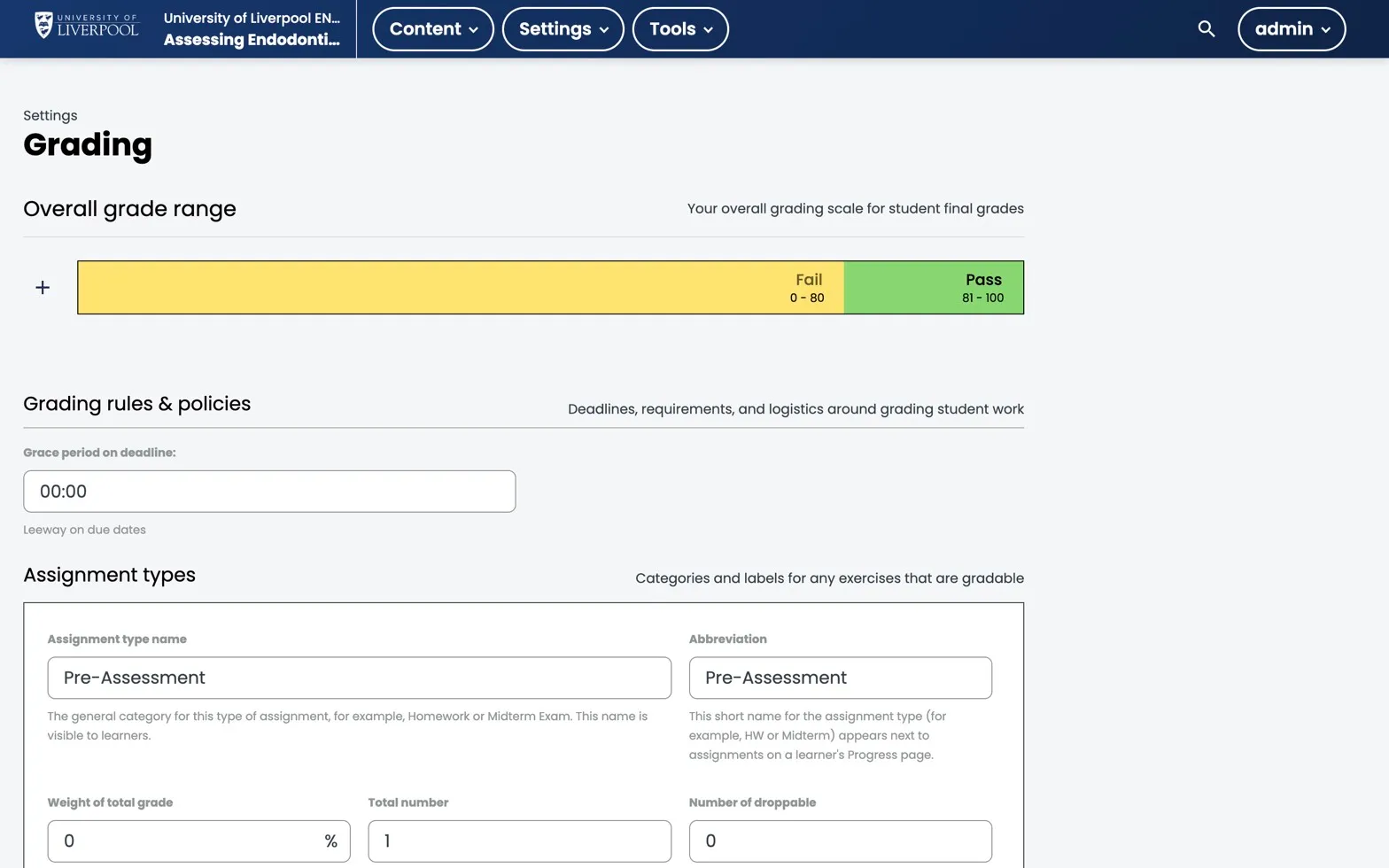
Studio → Settings → Grading for ENDO101. The overall grade range sets the Pass band at 81–100; below that, learners fail. Assignment types (Pre-Assessment shown) weight the gradebook.
Opening the gradebook
LMS course view → Instructor → Student Admin → View Gradebook.
You see a row per learner with:
- Subsection scores.
- A computed course total.
- A pass/fail flag based on the grading policy.
Adjusting an individual grade
- Click into the learner.
- Adjust Grades for a Specific Learner.
- Pick the subsection or problem and override.
Overrides are logged. Be conservative — overrides bypass the normal attempt/grading rules, so document why in a course staff note.
Downloading the full grade report
Instructor → Data Download → Grade Report. Returns a CSV with every learner × every graded subsection. Use this for end-of-cohort CPD reporting.
Grading policy
The grading policy itself is set in Studio under Settings → Grading. Set:
- Assignment types — for CPD courses, usually a single “Assessment” type at 100% weight.
- Pass threshold — Liverpool Dental’s default is 81% (Pass band 81–100, Fail 0–80). Check the course’s CPD claim before changing.
- Grade range — pass/fail unless you want graded letters.
Liverpool Dental Learning Hub — author guide.
Built by BrainJam
for the University of Liverpool School of Dentistry.