
Manage text components
Text components are the workhorse — explanations, transitions, references, callouts. Studio uses the TinyMCE rich-text editor (patched to use Poppins to match the Liverpool theme).
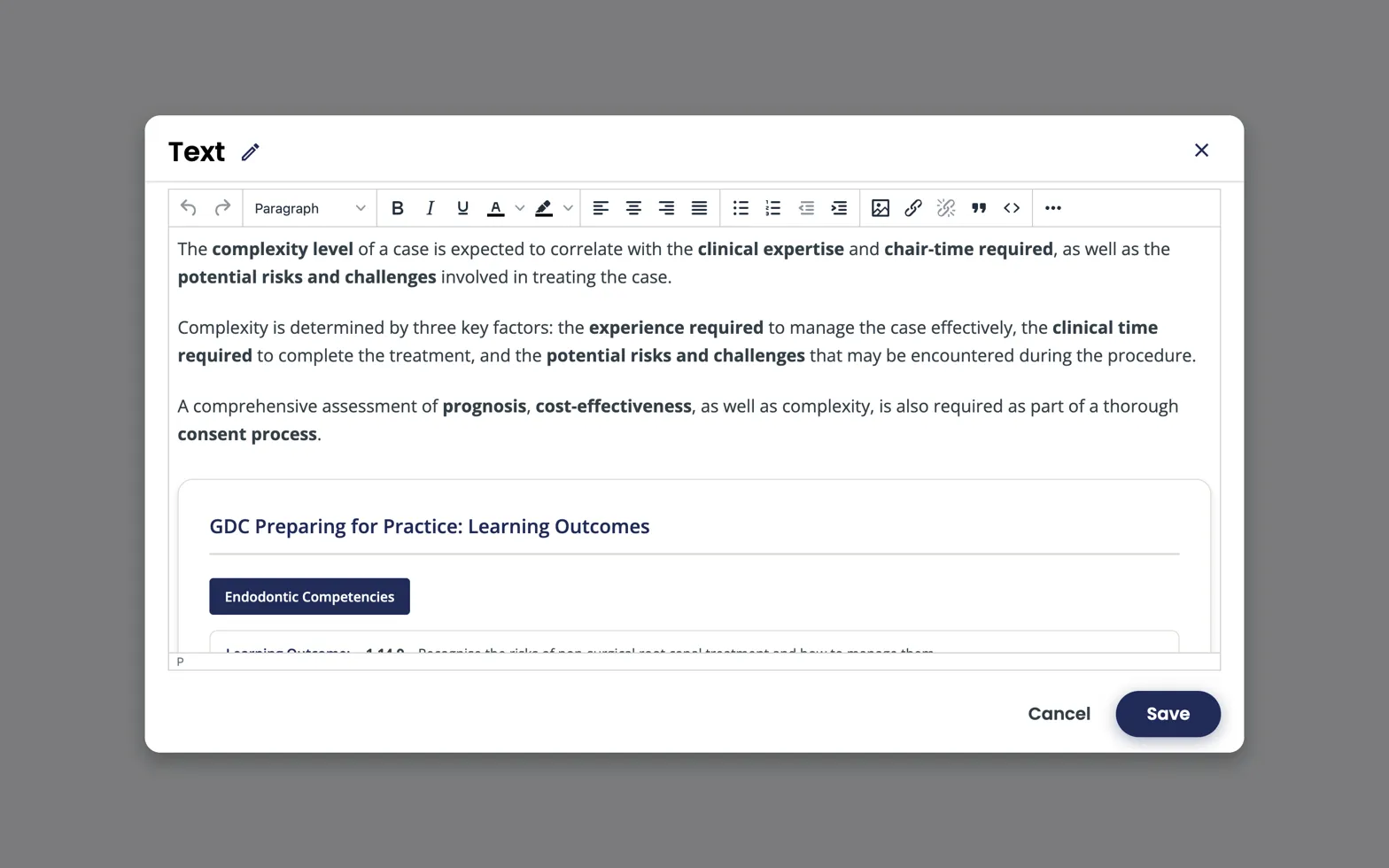
The TinyMCE editor open on a Text component in Studio. Toolbar covers paragraph style, formatting, alignment, lists, images, links, and the HTML-source button (<>).
What you can do in the editor
- Headings (H2–H4 — H1 is the unit title, don’t add another).
- Bold, italic, lists, blockquote, links.
- Tables — works fine for small data; avoid for layout.
- Images — uploaded to Files & Uploads (S3-backed in this deployment).
- HTML source view — when you need an embed or precise markup.
Uploading images
- Click the Insert Image button in the editor.
- Upload from your computer, or pick an existing file from Files & Uploads.
- Always set alt text — this is an accessibility requirement, not optional. See the accessibility checklist.
Images are stored in the course’s S3 bucket; URLs include the asset key so they don’t break if you re-import the course.
Embedding video without using a Video component
You can paste an <iframe> into the HTML source view, but prefer a real video component when possible — you get the player controls, transcripts, and analytics for free.
Style notes
- The Liverpool Dental theme styles headings, lists, blockquotes, and tables consistently. Don’t override colours or fonts inline — let the theme handle it.
- Keep blocks short. A wall of text is the most common learner complaint.
Accessibility
- Alt text on every image.
- Real headings, not bold-as-heading.
- Descriptive link text — never “click here”.
Liverpool Dental Learning Hub — author guide.
Built by BrainJam
for the University of Liverpool School of Dentistry.