
Authoring with coursekit
For new course content on the Liverpool Dental Learning Hub, coursekit is the preferred authoring surface. It’s an Advanced XBlock added through Studio’s normal Add Component flow — the rest of Studio (outline, publishing, scheduling, certificates) is unchanged.
This page covers how to launch coursekit from Studio. For the content-authoring workflow itself — writing questions, building image-hotspot interactions, sequencing tasks — see the coursekit docs (link TBD — placeholder until the docs site lands).
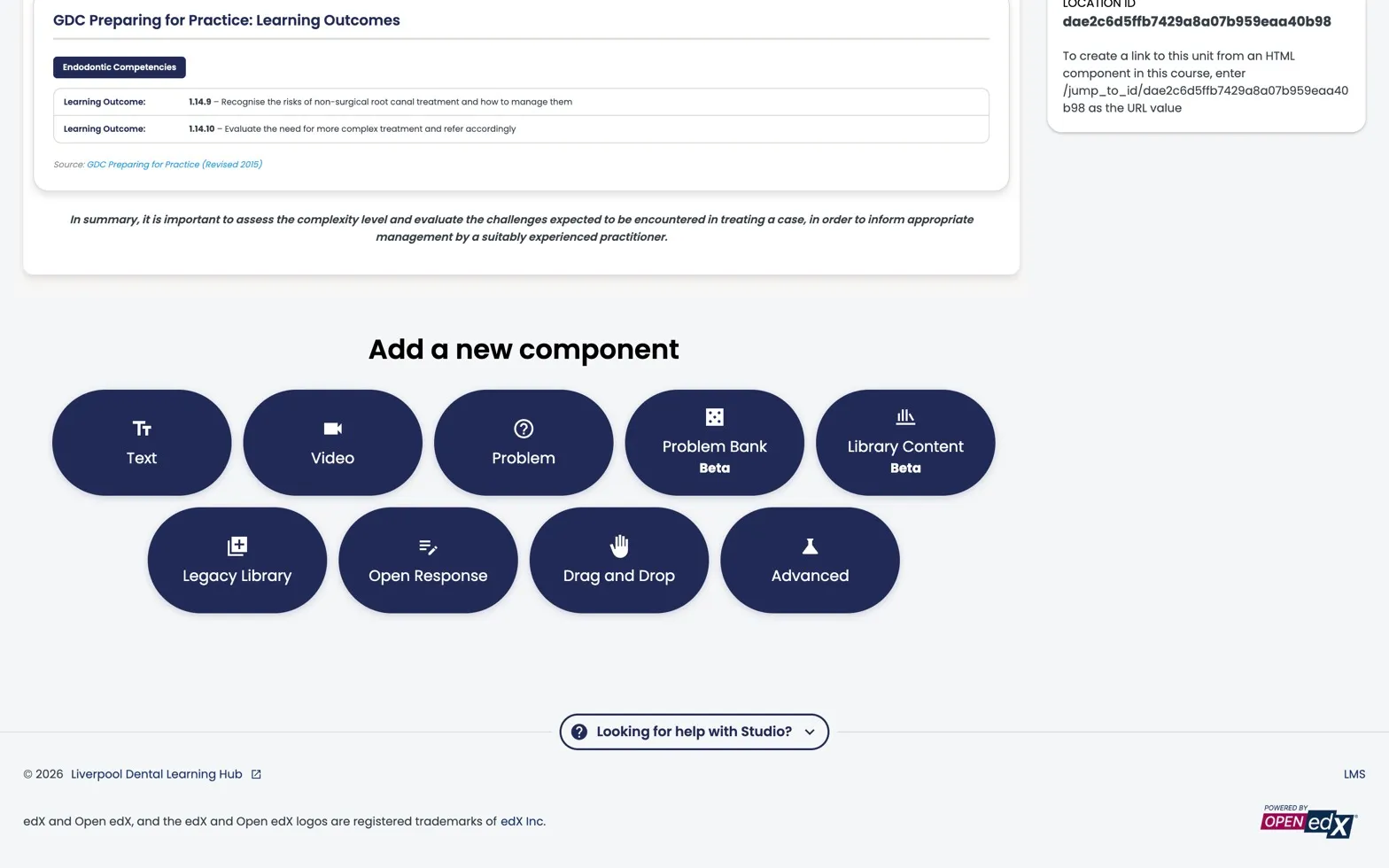
Scroll to the bottom of any unit in Studio to find the Add a new component strip. Advanced is the gateway to the coursekit XBlock.
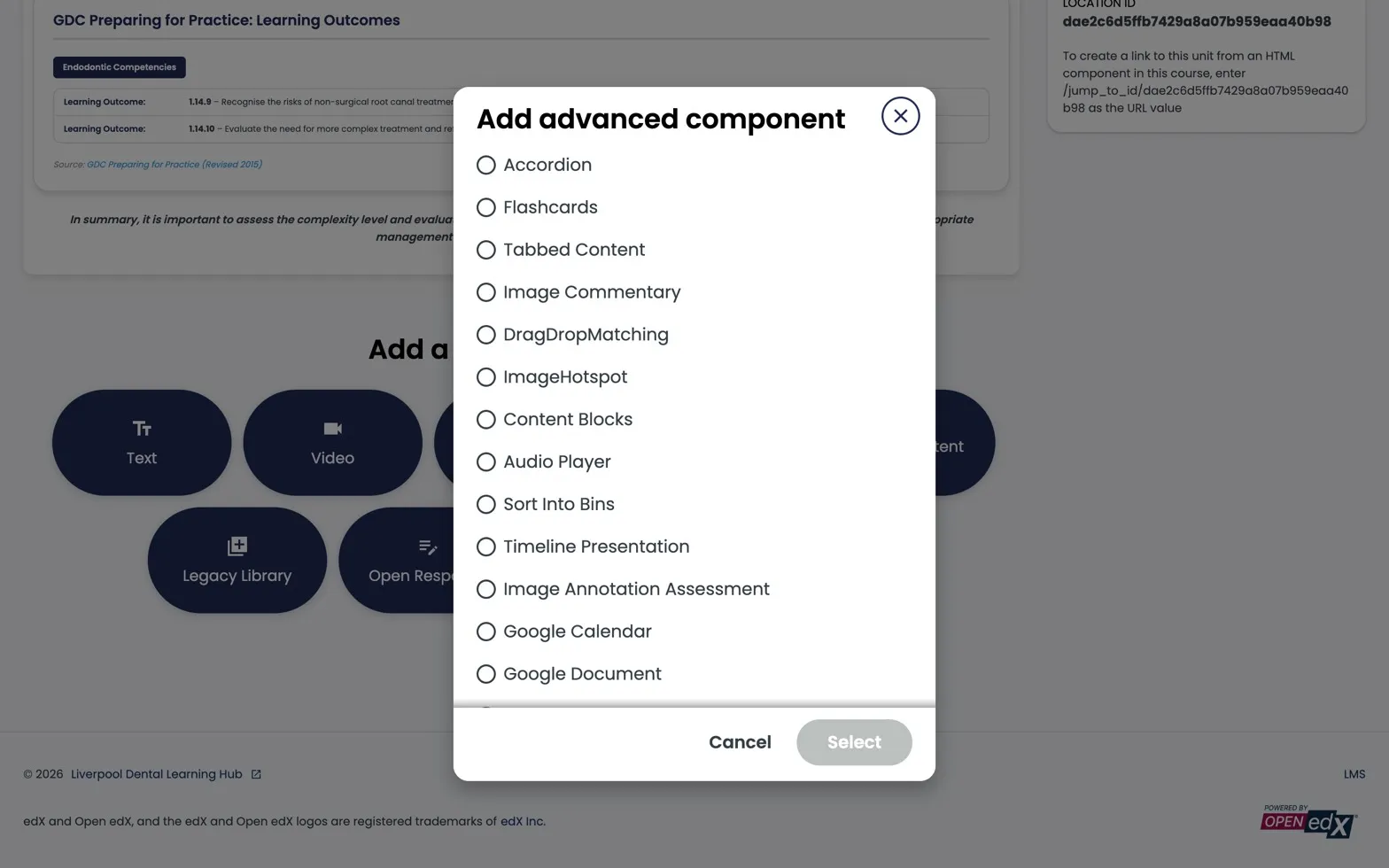
The Advanced modal. The 11 Liverpool XBlocks already live here; coursekit will join them in the same list once installed.
Why coursekit, not the native problem editor
The built-in problem editor pre-dates modern authoring tools and shows it. coursekit is a block-stack editor (MCQ, multi-select, sequencing, image-hotspot, drag-drop, categorise, matching) built for educators who write course content full-time. It runs entirely inside Studio via the XBlock adapter; nothing extra to deploy, nothing to maintain separately.
If you’ve used the built-in problem editor before and found it slow, that’s the experience coursekit replaces.
Adding a coursekit block to a unit
- Open the unit in Studio (
studio.learning.endo360.uk→ your course → outline → unit). - Add Component → Advanced.
- From the Advanced dropdown, choose coursekit.
- The block appears in the unit. Click Edit to open the coursekit editor.
- Author your content inside coursekit — the editor is the full coursekit experience, embedded in Studio.
- Save in coursekit, then Publish the unit in Studio as you would any other component.
When you might still reach for the native editor
Two cases:
- Quick prose-only blocks — for a one-line text snippet between two coursekit blocks, the native HTML/Text component is fine.
- Reference / legacy items — existing problems written in the native editor before coursekit will keep working. You don’t need to migrate them on a fixed schedule, but the bar for new content is coursekit.
The native problem types are still documented in this guide for those reference cases (see The problem component and below). Most authors won’t need to reach for them.
Files & uploads
Images, PDFs, and other static assets you reference from coursekit (or anywhere else in the course) still upload through Studio’s Content → Files & Uploads. Liverpool Dental’s deployment routes these to S3 automatically — see Manage video components for the same note about video.
Publishing and visibility
coursekit blocks publish, schedule, and gate exactly like any other Studio component. The full Studio publish/visibility model is covered in Control content visibility and access.
coursekit is built by BrainJam. The XBlock adapter source and docs will live at coursekit.dev (placeholder).