
Offer different content to different groups
Sometimes you want to show different content to different learners in the same course — e.g. an undergraduate-vs-postgraduate variant of the same module. Content Groups are how this is done.
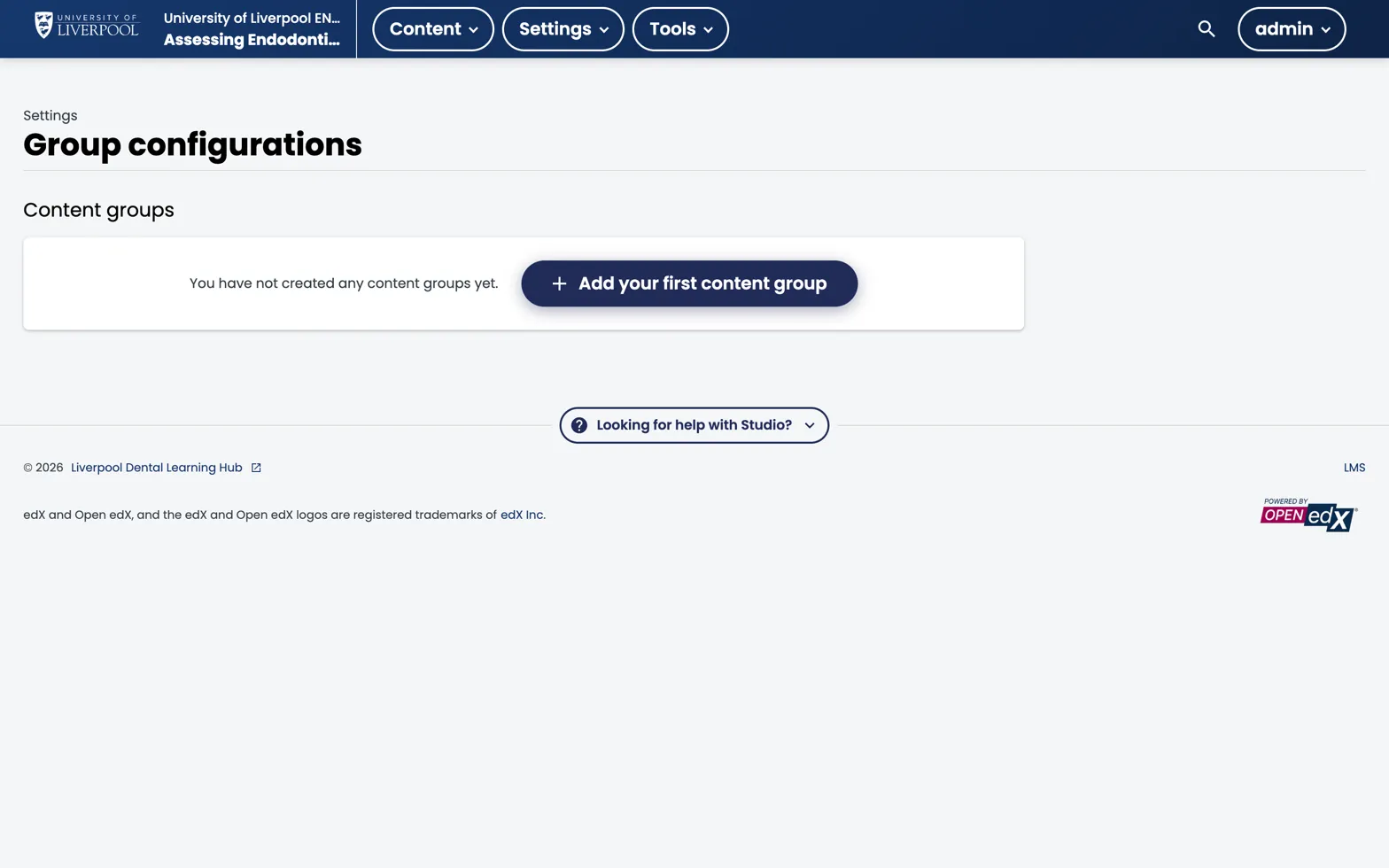
Studio → Settings → Group configurations. ENDO101 has no content groups defined — the default state. Click Add your first content group to create one.
When to use this
- Same core content, different stretch material for different audiences.
- Beta-testing a new module with a subset of learners.
- Region-specific guidance (rare in Liverpool Dental’s UK-focused catalogue).
When not to use it: if the two audiences would never overlap, run two separate courses. Content groups add real complexity.
How they work
- Define a Content Group Configuration — Studio → Settings → Group Configurations. Add one configuration with two or more groups (e.g. Undergraduate, Postgraduate).
- Assign learners to groups — LMS → Instructor → Cohorts. Map each cohort to a content group.
- Restrict component visibility — In a unit, click Access Settings on a component and pick which group(s) can see it.
The learner only sees the components their cohort has access to.
Limits
- Content groups apply at the component level, not section/subsection level.
- A learner is in exactly one group per configuration.
- Changing a learner’s cohort changes what they see immediately — no rebuild.
Liverpool Dental Learning Hub — author guide.
Built by BrainJam
for the University of Liverpool School of Dentistry.